






































In this article
A digital sign is useful when it gives someone the right information at the right place. A menu board should help a customer order. A showroom screen should clarify a product choice. An office display should carry information that employees can actually read. Buying the largest screen or the cheapest subscription does not settle those different jobs. Before comparing vendors, describe the decision your viewer needs to make and who will keep the message accurate. This guide explains how to connect that purpose to displays, players, software, creative content and a realistic installation scope.
What should your digital signage help people do?
Write one primary job for each screen before choosing equipment. “Help customers compare three service packages while waiting” is a usable brief. “Make the lobby more modern” does not tell a designer what to show or an installer where to put it. Identify whether people are standing, walking, ordering or sitting, and estimate how much time they naturally spend in front of the display. These observations determine the amount of information a screen can reasonably carry.
Then choose an outcome you can observe without inventing attribution. Staff might log how often customers ask where to collect an order, or check whether a particular service explanation is understood. A change in sales alone cannot show what a sign caused because staffing, promotions and visitor mix also change. Use your content strategy to align the display with the customer’s next useful action and give the screen an owner who can explain why its content belongs there.
How do you choose screen locations, size and orientation?
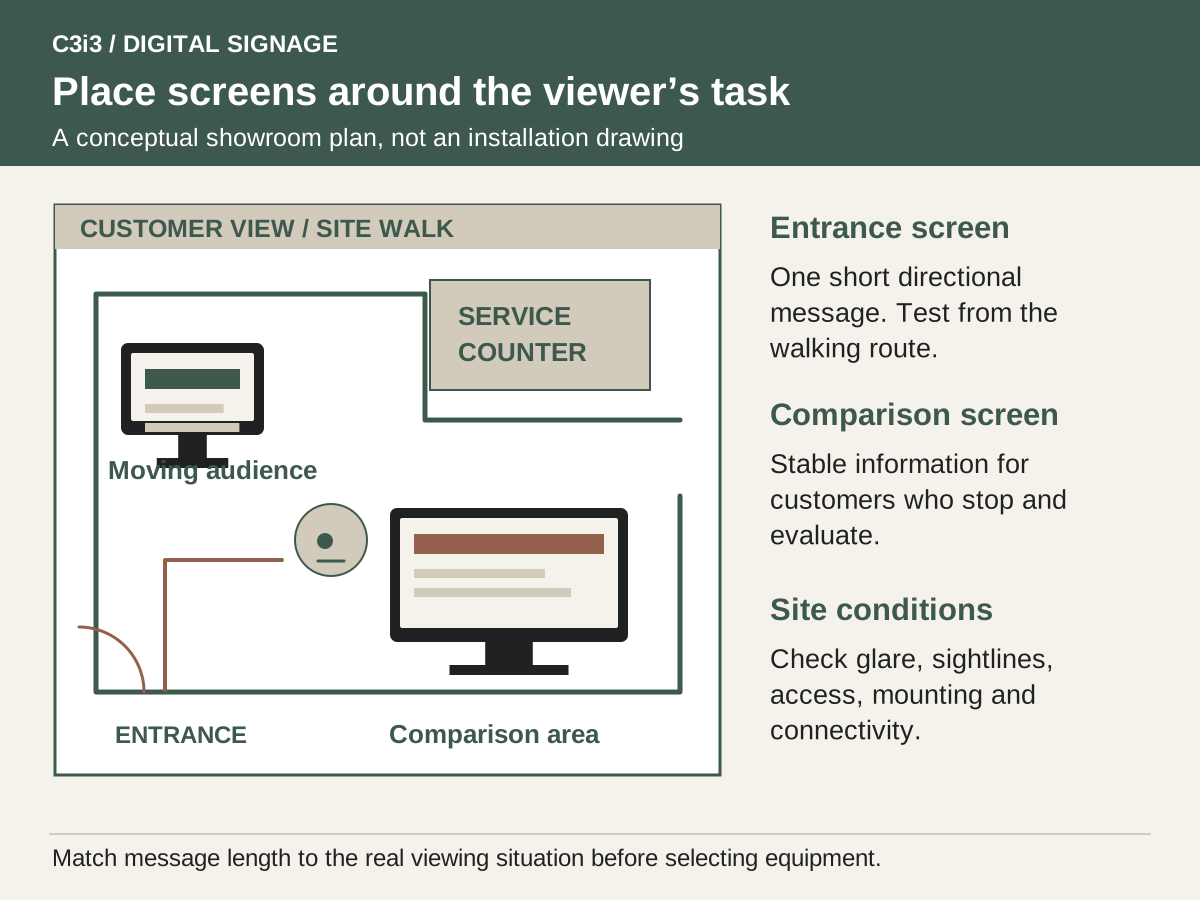
Walk the site during normal operating hours. Record viewing distance, obstructions, window glare, changing light and whether the audience sees the screen straight on. A small entrance display and a board behind a counter need different layouts even if both show the same offer. Mark likely locations on a floor plan and take photographs from actual viewer positions. Ask the installer to assess the proposed mounting surface, access for servicing and the practical route for power and connectivity.
Judge readability with a full-size sample rather than a laptop preview. Put the proposed text and images on a comparable display and view them from the farthest normal position. Test the busiest layout as well as the cleanest promotional slide. Portrait and landscape orientation also affect artwork and playback setup: Yodeck documents device-specific orientation settings, a reminder that the chosen player must support the intended arrangement. Use qualified installers for mounting and electrical work as appropriate to the site.
Which parts make up a complete digital signage system?
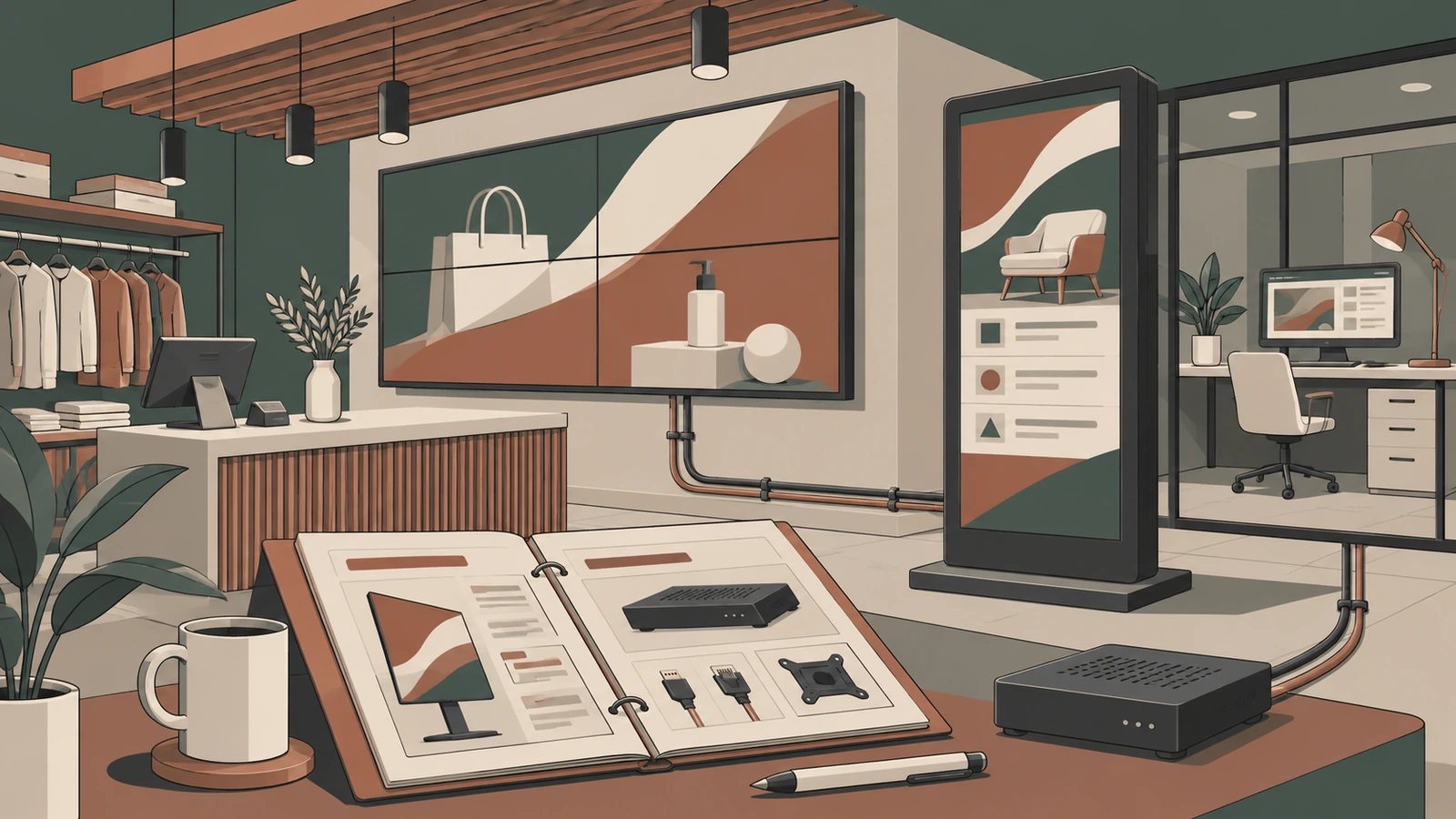
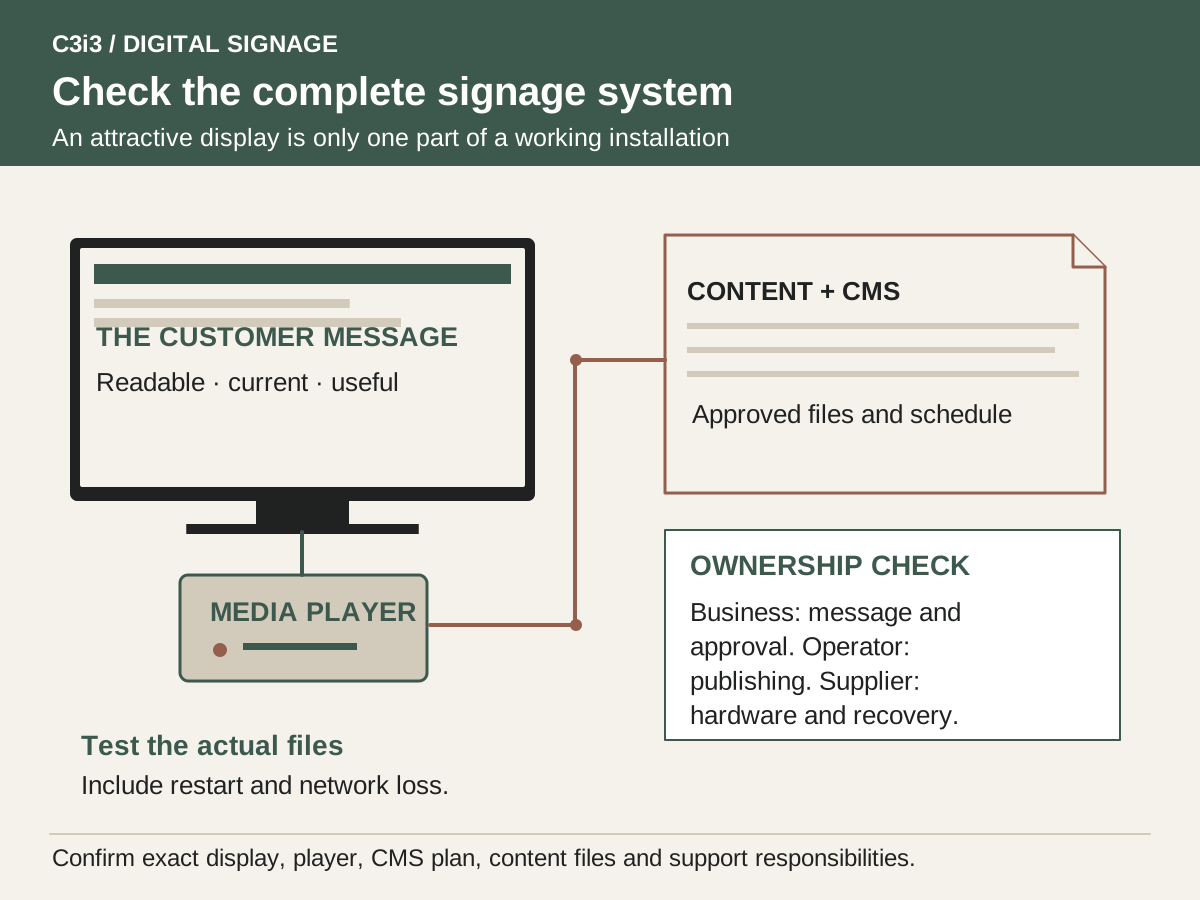
Separate the screen, playback device, content management system and content itself. The screen displays the image; a built-in or external player renders the media; the CMS assigns content and schedules; the creative files communicate the message. A quote that says “digital signage package” should identify each part and who supplies it. Ask for exact display and player model numbers, the CMS plan and any installation accessories, not a reassuring collection of brand names.
Compatibility needs to be demonstrated using the intended files. Your short promotional video, an HTML dashboard and a static menu can create different playback demands. Ask whether audio is needed, whether displays must remain synchronized and what happens after a power interruption. BrightSign’s buying guidance distinguishes the display, media player and management platform. Treat that as a useful system map, then make each supplier show that its proposed combination meets your particular brief.
What should staff be able to update without calling a supplier?
List the changes your team makes in a normal month: replacing a promotion, updating a price, publishing holiday hours or changing which location receives an announcement. In a demo, have the person who will do the work complete those tasks. A polished vendor presentation can conceal a difficult editing process. Check whether templates protect key layout elements while allowing the intended fields to change, and whether staff can preview a screen before publishing.
Separate editing permission from publishing and device administration. A local manager might need to change a store-specific promotion without touching billing or another branch’s screens. Product documentation offers concrete examples, including ScreenCloud’s groups and spaces. Do not assume every plan includes the same permission controls. Our multi-location CMS guide explains the tests that turn permissions and content organization into an operating workflow.
How much content does a useful screen actually need?
Start with a small set of purposeful templates: a service explanation, a current offer, a directional message and a fallback slide. Give each template one dominant message and a clear reading order. A screen is not a brochure with every paragraph animated. If a viewer must watch a long loop to find basic information, consider keeping that information continuously visible and moving optional promotional content elsewhere. Plan static and motion versions around the real viewing time.
Create source files your team can update and export for the chosen screens. Confirm aspect ratio, safe margins, file delivery and rights to photographs, music and other creative assets. A video made for a website may need a different edit when it plays silently in a reception area. C3i3’s campaign asset design and video repurposing services can help with that content work. The operating plan should still name who approves prices, expires promotions and orders new material.
What should happen when the internet or a device fails?
“Works offline” is a question to test rather than a box to tick. Uploaded images and video may behave differently from a live webpage or streaming application. ScreenCloud’s offline documentation explains this distinction. Ask the supplier to demonstrate loss of connectivity with your proposed content, then restore the network and confirm that new assignments arrive. Decide which information remains safe to show when it can no longer be refreshed.
Specify a fallback for expired or unavailable content and a person who receives fault notifications. The business needs a recovery route for a disconnected player, a failed screen and an incorrect message. Those are different incidents and may belong to different providers. Include remote diagnostics, local access instructions and a spare-device decision in the plan. A hardware warranty does not automatically provide an installer visit, a replacement screen on the wall or someone who can repair an incorrect content schedule.
How do you compare proposals without buying the wrong scope?
Send the same brief to every supplier. Include screen count and locations, operating hours, content types, update responsibilities, network assumptions and required support. Ask for a line-by-line separation of equipment, installation, subscription, initial content, training and ongoing service. If one proposal includes a site survey and another assumes a ready mounting surface, their totals are not comparable. Keep exclusions beside the price rather than discovering them after installation starts. Bring a representative week of content changes to the proposal review: one price correction, one location-specific announcement and one withdrawn promotion. Ask each supplier to identify who would complete each task, whether it is included and what approval it requires. This small exercise exposes gaps between a supplier’s equipment scope and the business’s expectation of a managed communication service. Record those gaps before approving an order, while there is still time to change the specification or allocate the work internally.
Use our signage cost guide to organize the budget and the installer checklist to specify handover. Confirm that the business can access its own CMS account, original artwork and device inventory. Supplier-managed service can be convenient, but you should understand what remains available if you change providers. Ask for renewal terms and the process for exporting content or transferring administration before treating the system as a long-term purchase.
What should a small business prove in a pilot?
Choose a representative location rather than the easiest corner of the building. The pilot should exercise the difficult viewing angle, a real staff update, a scheduled change and the recovery behavior you expect to need. Set acceptance criteria in plain language: the intended audience can read the essential message, an authorized staff member can publish the correct version and a disconnected device behaves as agreed. A supplier demo proves capability only to the extent that it matches those conditions.
Keep a short issue log with photographs, the content version, the time and the person responsible for a correction. Distinguish a creative problem from a configuration or hardware problem so the right specialist can respond. If the initial screen works, expand in a controlled order and reuse the validated templates and checklist. If the business cannot keep one screen accurate for several ordinary updates, adding more locations is likely to multiply the management problem rather than solve it.
Which buying decision belongs to which part of the system?
| Decision | Evidence to request | Responsible party |
|---|---|---|
| Viewing conditions | Full-size content test from actual audience positions | Business owner, designer and installer |
| Display and player | Named models with a representative playback test | Equipment supplier |
| Content management | Staff completes a publish and rollback exercise | CMS provider and account owner |
| Initial content | Editable templates, export sizes and usage rights | Creative team |
| Installation | Site survey, route plan and documented exclusions | Qualified installer |
| Ongoing support | Fault contact, response scope and replacement process | Named service provider |
Hypothetical example: a showroom starting with two screens
Imagine an equipment showroom adding one entrance display and one product comparison screen. The entrance audience is moving, so its brief is limited to opening information and a clear route to the service desk. Buyers at the comparison area have more time, so that screen can explain three product families while keeping the staff contact visible. Neither screen is expected to function as an unattended product salesperson.
The team tests sample artwork from the normal walking route and the seated consultation position. The installer changes the comparison screen’s proposed position after identifying glare. During the pilot, a manager publishes a revised opening-hours slide and verifies it on the actual display. A network interruption shows that the locally stored content continues, while a live dashboard does not refresh. The owner replaces that dashboard with a suitable fallback before ordering additional screens. This is an illustrative decision process, not a reported customer result or a forecast of additional revenue.
Key takeaways
- Define the viewer’s job before choosing hardware.
- Test the real screen, player, content and network together.
- Budget for ownership, updates and recovery as well as installation.
- Pilot the staff workflow before expanding to more locations.
Frequently asked questions
Can we use a television we already own?
Possibly, if its supported operating conditions, inputs, orientation and image quality fit the use case. Check the manufacturer’s intended usage and warranty terms. Compare the cost of adapting it with a suitable commercial display, and test your player and content before committing.
Do we need an external media player?
Not always. Some displays offer built-in playback options while other systems use a separate player. Choose based on CMS compatibility, content requirements, remote management and recovery behavior. Ask the supplier to identify the exact configuration rather than assuming every smart display is interchangeable.
Can C3i3 supply an installer or recommend the best platform?
C3i3 can help define content, visual requirements and the buyer brief. Equipment selection and installation should be assessed with suitable suppliers. This guide does not establish an installer network, supplier endorsement or a hands-on ranking of platforms; those relationships and evaluations require separate verification.
Sources and editorial method
Prepared from linked primary documentation checked November 20, 2026. Vendor documentation establishes stated features and operating conditions. Comparisons and worksheets are C3i3 editorial analysis; worked examples are hypothetical.
- BrightSign: buyer’s guide to digital signage
Manufacturer guidance on displays, players, content management and evaluation. This is a supplier perspective rather than independent testing.
- ScreenCloud: offline playback support
Distinguishes locally cached uploaded media from internet-dependent applications. Confirm behavior on your chosen player and content.
- Yodeck: basic screen information
Documents screen orientation and device-specific settings. Supported controls vary by player type.
- ScreenCloud: people, groups and spaces
Documents role and location-based content access. Advanced permissions can depend on the subscription plan.
Plan the screens, content and updates as one customer experience.

Tell us where the screens will be used, what viewers need to understand and who will update the content. C3i3 can help with the content strategy, design and video assets while you evaluate hardware and installation providers.
Explore graphic design or tell us about your project.