

































In this article
An update badge appears beside the plugin that runs your enquiry form. Clicking it takes seconds. Finding out afterward that the form no longer sends messages can take much longer. Leaving every update untouched is not a dependable answer either, especially when a release addresses a security problem.
WordPress maintenance services should give your business a repeatable way to change software and verify the result. You do need to know who evaluates updates, what protects recent business activity and which checks must pass before a change is considered complete.
Know which plugin supports which business function
Ask your maintainer for a short inventory showing each active plugin, purpose, support source, license owner and relationship to important tasks. Include the theme and custom work that relies on those components. A plugin described as a utility may still be responsible for form delivery or payment confirmation.
Review overlap and abandoned components with a qualified maintainer. Do not remove something merely because its name is unfamiliar. The decision should account for the actual site and stored information. WordPress's update management lesson highlights release information as part of understanding changes. Your inventory makes that review specific to the business.
Decide who can approve routine and urgent updates
Name the person who assesses updates and the person who approves interruption to live operations. Define routine authority so every small change does not wait for the owner. Also establish how the maintainer contacts you when a security fix or compatibility issue changes the plan.
A release that adds a visual feature and a release that fixes a known security weakness may deserve different timing. Ask for the reason behind a proposed delay and a date for reassessment. Avoid a blanket rule that all updates wait a fixed number of weeks. The decision should reflect the exposure, vendor information and consequences for your particular site.
Check recovery before relying on an update button
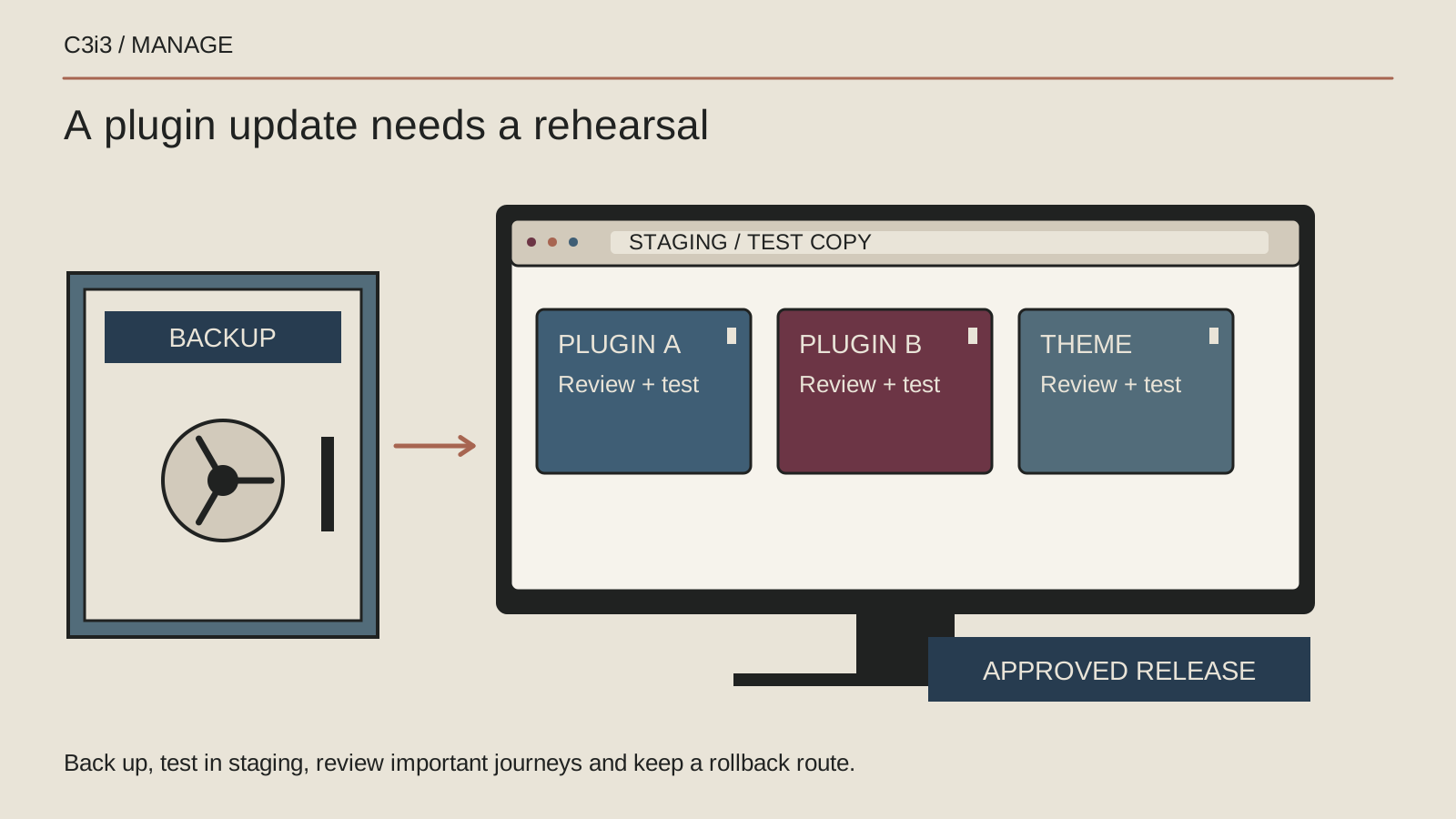
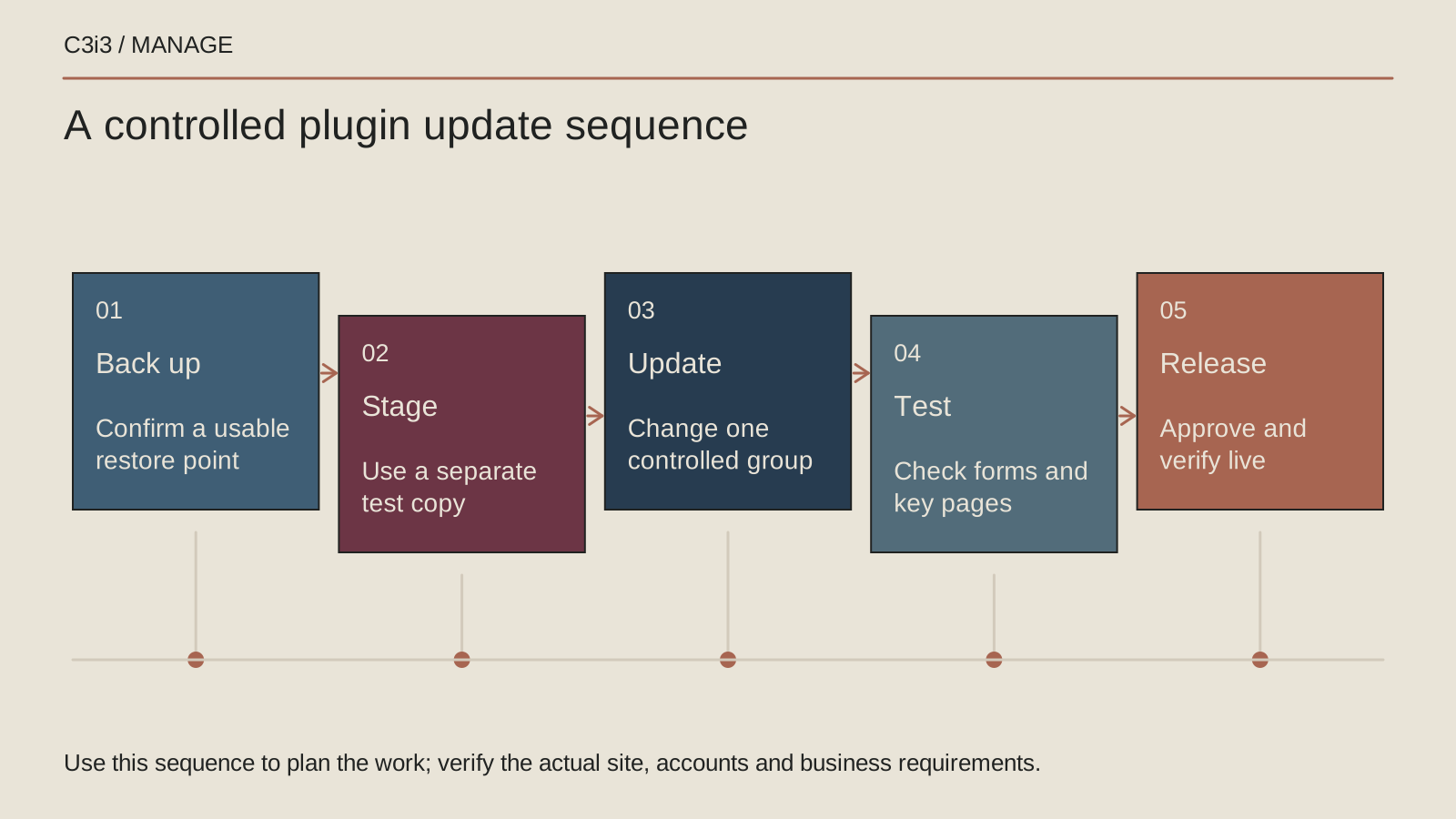
Before a planned change, confirm that the backup includes the required site files and database and that an authorized person can access it. Ask when a restoration was last tested and whether that test covered the customer functions you depend on. Keep those facts separate from the time a backup job completed.
The official WordPress update instructions advise backing up first. Discuss what restoration would do to activity created afterward. On a site accepting orders or bookings, a full rollback can remove recent records unless the team plans reconciliation. The owner needs that business consequence explained before the maintenance window.
Use a test site that behaves enough like the real one
A separate test environment lets the maintainer inspect a significant change before exposing customers to it. It should reflect the relevant live software and configuration. Where real customer data is involved, agree appropriate protections and limit access to what testing requires.
Keep test forms, payments and automated messages from reaching real customers unexpectedly. Use supported testing options for connected services. Differences between test and live environments can still matter. Record what was tested and what could not be replicated. That makes the live verification plan more precise instead of giving everyone false confidence.
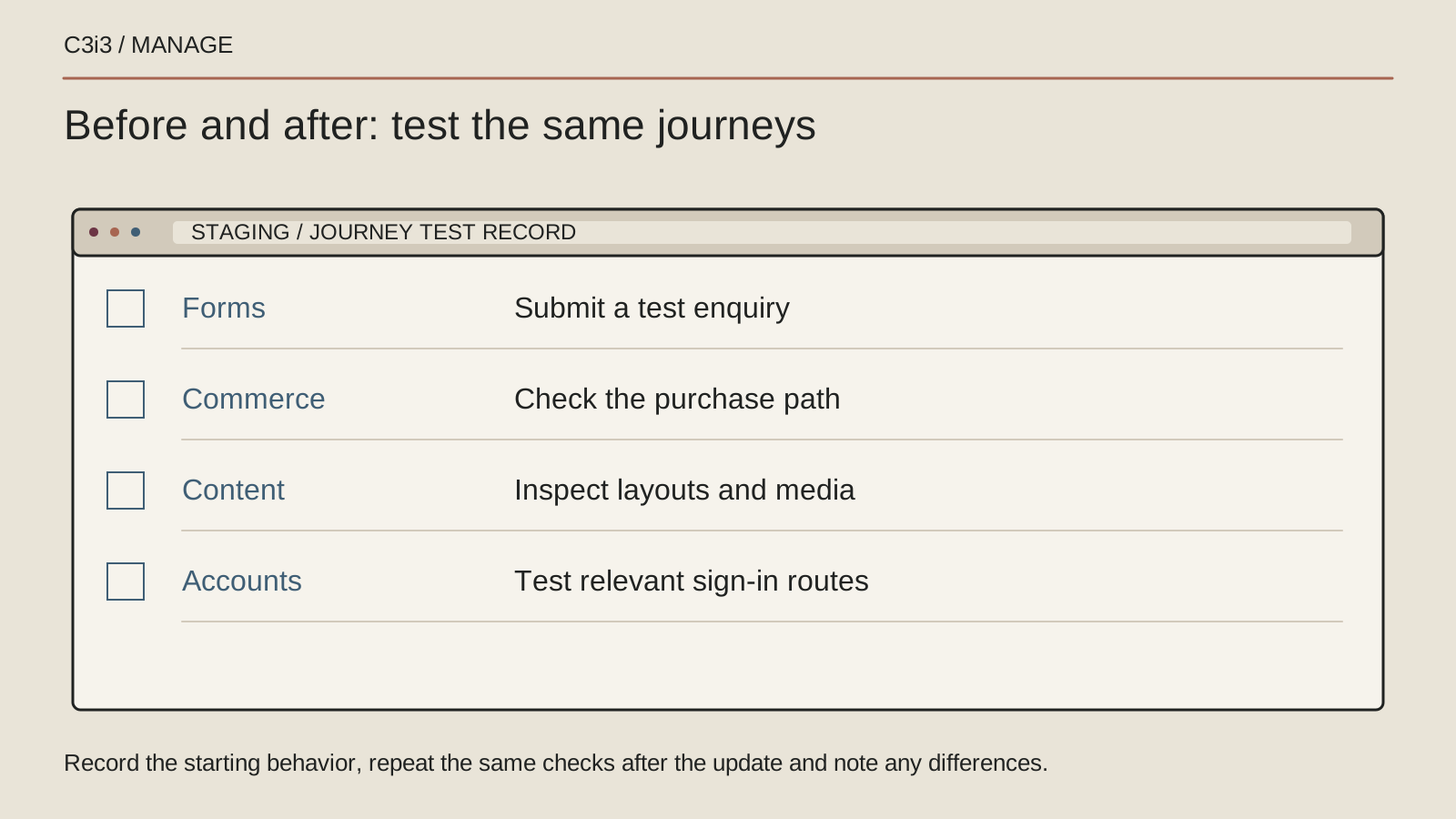
Test actions and outcomes, not only page appearance
Prepare a short test script before updating. For a contact journey, open the service page, complete the form, trigger a validation message, submit a labeled test and confirm receipt. For a booking journey, use an approved test scenario that checks the relevant confirmation without creating operational confusion.
Include mobile navigation and any page edited by the affected component. An update can preserve the homepage while changing another template or a hidden form setting. Ask the maintainer to record results and screenshots where helpful. Tests should reflect the tasks your business relies on rather than becoming a long ritual of clicking unrelated pages.
Make the live release a coordinated business event
Choose a time when the responsible maintainer can observe the result and the business can respond if a key function fails. Tell staff what is changing, where to report problems and whether any brief interruption is expected. Avoid beginning a consequential release immediately before the only knowledgeable person becomes unavailable.
Control the size of the change so problems remain traceable. The exact update order belongs to the maintainer and depends on compatibility requirements. Agree a stopping point and recovery decision. After release, check the live customer paths again, including receipt of test messages. Passing staging tests does not replace verification in the environment customers actually use.
Choose automatic updates with a clear operating arrangement
Automatic updates can reduce manual work, but somebody still needs to know when they run and investigate failures. WordPress documents plugin and theme auto-updates, including the controls available within the platform. Ask your maintainer which components should use them and why.
Document monitoring, notifications, backup coverage and checks after an automatic change. If the same component repeatedly breaks a business function, investigate its compatibility and support rather than repeatedly restoring and forgetting the issue. Maintenance should reduce recurring uncertainty, even when the update mechanism itself is automated.
Keep this checklist beside you
Questions before the next step
Can anyone guarantee that a plugin update will never break a site?
No. Preparation, testing and recovery planning reduce uncertainty, but compatibility and environmental differences can still cause problems. Look for a provider that explains its process and response responsibilities instead of promising that updates cannot fail.
Should I turn off every automatic update?
Use a site-specific decision with your maintainer. Consider the component, business impact, monitoring and recovery arrangements. A blanket switch does not replace responsibility for security notices, compatibility checks and prompt investigation when something goes wrong.
How C3i3 Can Help
C3i3 can help coordinate ongoing WordPress and website support with a clear inventory, approval process and practical checks around changes. We can review the current maintenance arrangement and identify where business responsibilities are unclear.
Bring an example of a failed update or a list of components nobody confidently owns. We can scope recurring support around the site you have, coordinate specialist work where needed and give your team a clear route for maintenance decisions.