
































In this article
A property owner tries to request a termite inspection from a phone. The form is squeezed into a narrow column, a date selector is difficult to operate and an upload is required before they know what documents the company needs.
Responsive design should do more than make the page fit the screen. It should let someone understand the service, provide the necessary first-contact information and know whether an appointment has actually been confirmed.
What should the mobile page explain before the form?
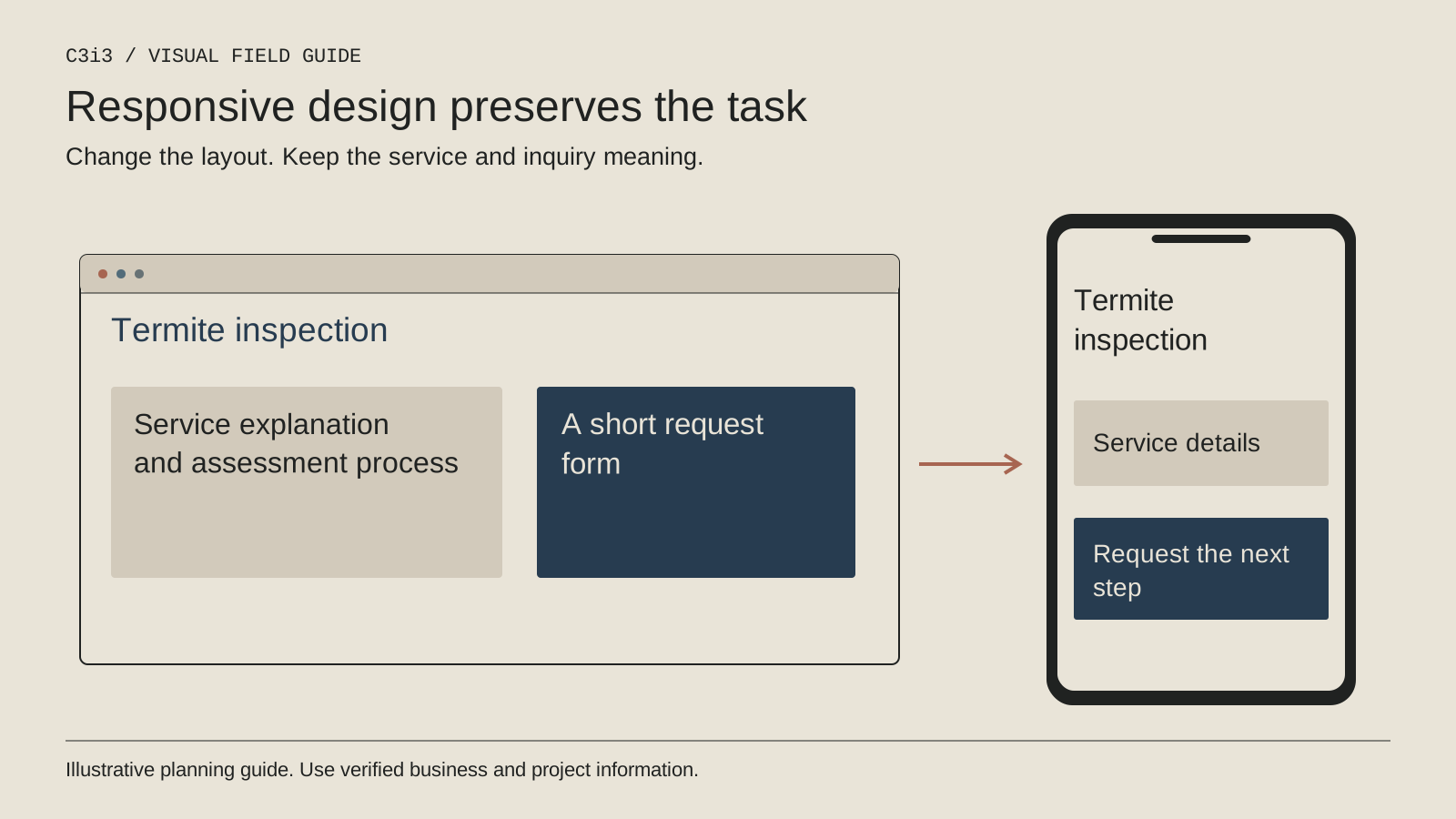
Identify the inspection service and the business responsible for it. Explain real coverage, how the first appointment is arranged and what information helps the office respond. Do not assume a customer understands the difference between an inspection and a treatment proposal.
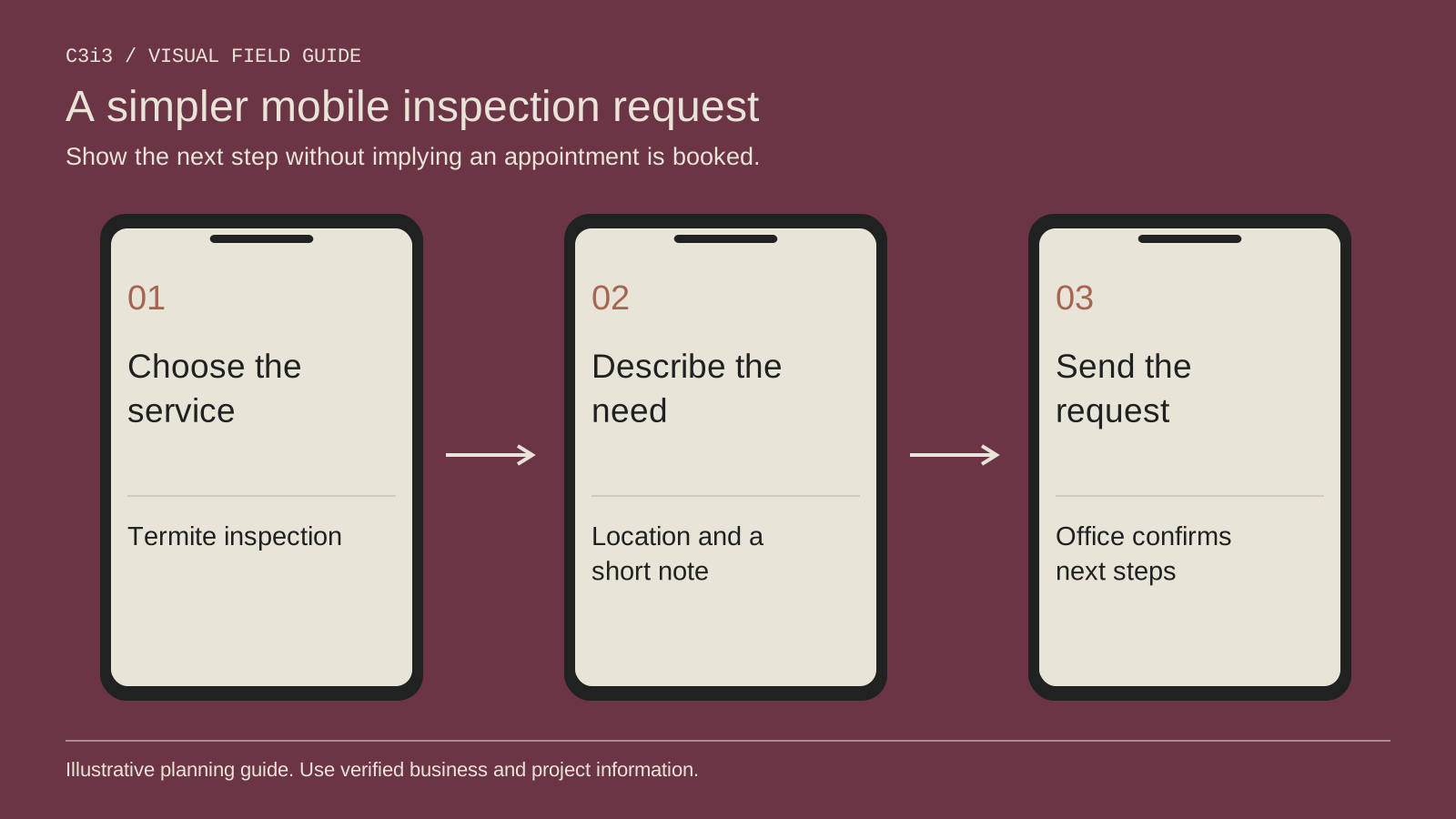
Keep essential content available as readable text. A large infographic can help explain the journey, but the customer should not have to zoom into an image to find the contact process. Use headings that describe the task rather than slogans.
Make the business identity and relevant verification resources easy to find. The Structural Pest Control Board's verification page is an official starting point for California company and license checks.
Which first-contact fields are genuinely necessary?
Ask the office which information it uses to route the request. Contact details, property location, the inspection being considered and preferred timing may be enough to start. Let the customer say they are unsure rather than forcing a technical selection.
Keep detailed reports, sensitive property records and access arrangements for an appropriate later process. If uploads are offered, explain the accepted files and provide an alternative way to begin when uploading is not practical.
Do not confuse a marketing form with a professional inspection record. The first request introduces the situation; qualified personnel determine the assessment and documentation the work requires.
How should the layout behave on a small screen?
Use a single understandable reading and interaction order. Keep labels close to controls, allow text to wrap and avoid horizontal scrolling for essential questions. Do not let a fixed banner cover the submit button or instructions.
Review controls on real representative devices. A calendar, file chooser or custom dropdown may behave differently from the desktop mockup. Use familiar native controls where appropriate and explain formats before an error occurs.
The W3C forms guidance helps ground labels, instructions and feedback. Responsive layout and accessibility need to be considered together; shrinking desktop elements is not enough.
What should happen when someone makes a mistake?
Provide clear field-specific feedback and preserve useful input where appropriate. A customer should not have to retype an entire property description because one contact field needs correction. Do not rely on a red border alone to explain the problem.
Test incomplete submissions, unsupported files and delivery failures. Make the next action understandable and ensure the interface remains operable with a keyboard and relevant assistive tools. A successful path is only one part of the review.
Keep spam protection proportionate to the task and test its impact. The objective is to protect the business without silently preventing legitimate customers from reaching the office.
How do you distinguish a request from a booked inspection?
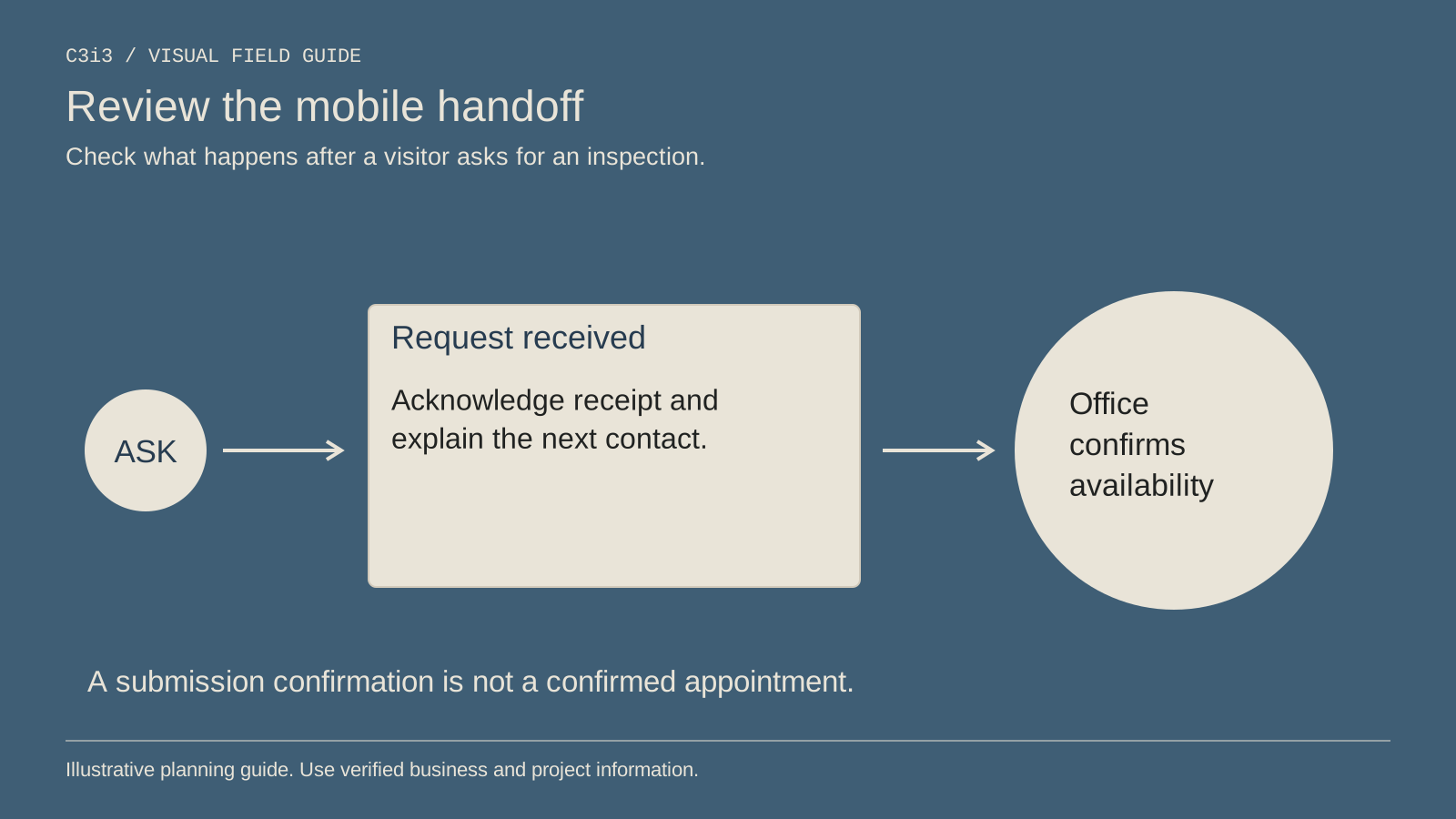
Use language that matches the actual system. If the office must confirm a time, the button and acknowledgment should describe an appointment request. Do not display “you are booked” merely because a message was received.
If genuine scheduling is supported, check availability, confirmation and any rescheduling process as part of the implementation. Make responsibility clear when the customer needs to change details. Avoid offering a calendar interface that implies unavailable appointments are guaranteed.
Explain the response expectation the business can fulfill and an appropriate alternative contact route. Then run a clearly labeled internal test to confirm that the office receives the request and understands the next action.
What should you review after launch?
Look at repeated customer questions, failed submissions and office reports of incomplete or unsuitable requests. Compare these observations with the tested mobile journey. Do not assume abandonment always means a person disliked the service or price.
Review the experience when new fields, widgets or content are added. An initially usable page can become difficult over time if every department adds another required question. Keep an owner for the complete customer task.
Our form accessibility guide explains related review questions, while the contractor website framework helps define scope and responsibility. Use those principles to maintain a clear mobile route, not just a one-time layout.
Keep this checklist beside you
Questions before the next step
Is a mobile-friendly label enough to prove the form works?
No. Test representative devices, controls, errors, assistive access and message delivery as part of a defined review.
Should an inspection form require treatment details?
Ask only what is needed for the first request. The professional assessment determines the appropriate findings and any later treatment discussion.

How C3i3 Can Help
C3i3 can help your pest-control business create a clearer mobile inspection-request experience. We can review the service explanation, responsive layout, form controls and office handoff as one customer task.
Bring the existing page and the questions customers struggle with. We can identify barriers, develop more useful visual explanations and define practical testing. The aim is a dependable route to an appropriate inspection conversation, without implying a technical assessment or confirmed appointment that has not occurred.