































In this article
A homeowner begins your electrical estimate form, reaches a required field they do not understand and gives up. Another can see the questions but cannot move through the custom controls with a keyboard. Your office sees neither person in its lead report.
Accessibility work helps you find barriers that a completed-submission count cannot reveal. For a panel-upgrade request, start with the information the business needs and the ways people interact with the form.
Which questions belong in the first request?
Ask for the information needed to route an initial conversation: contact details, property location, the project being considered and a preferred way to respond. Let the customer express uncertainty rather than requiring a technical diagnosis of the electrical system.
Review each required field with the office. If a detail is not used until a later assessment, consider collecting it at that stage through an appropriate process. Long forms can create unnecessary barriers without improving qualification.
Do not make a photograph upload the only way to proceed if a description or conversation can begin the request. Explain any file requirements clearly, and keep sensitive property or account documents out of a broad marketing form.
How should labels and instructions be presented?
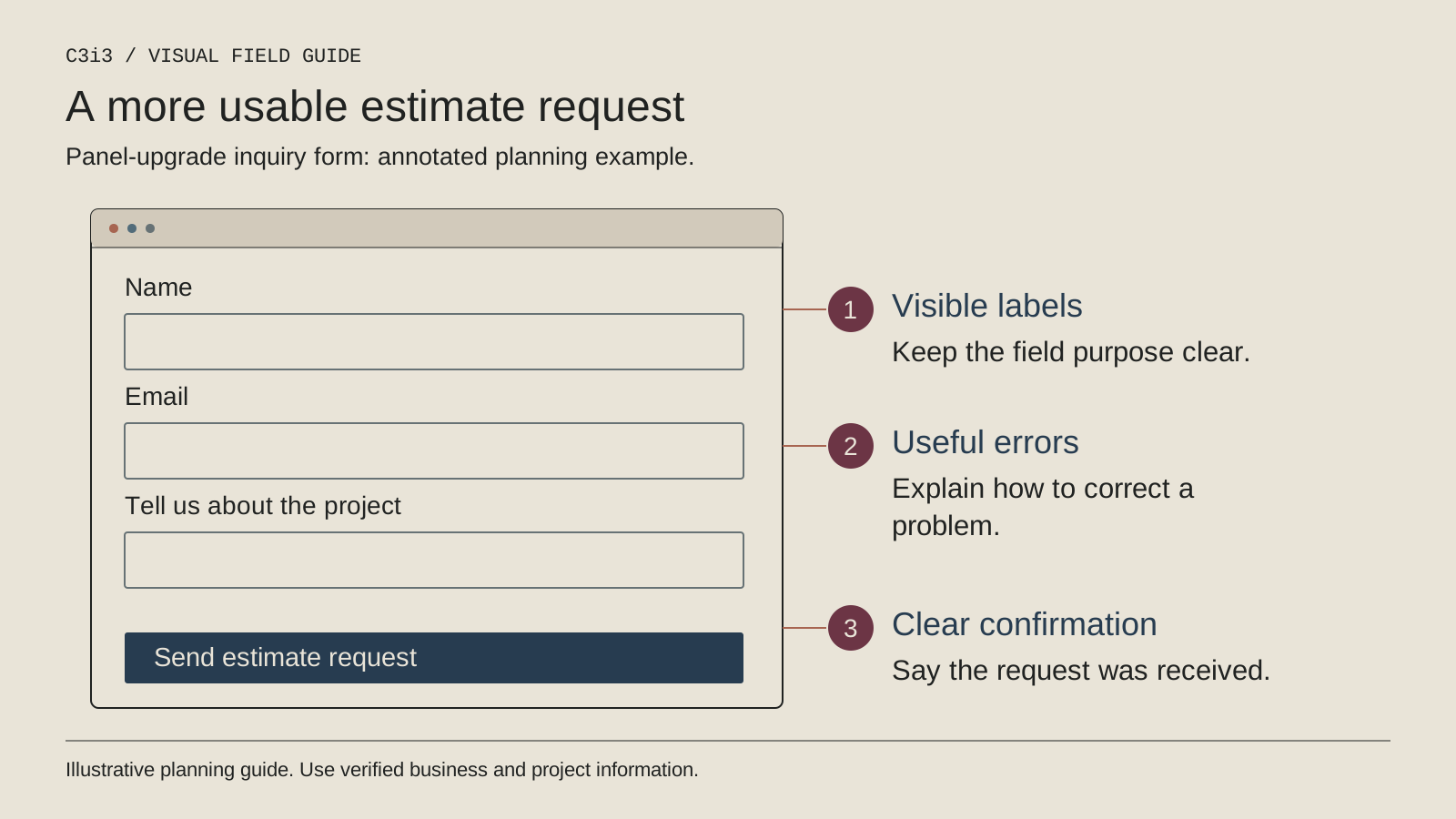
Use visible labels associated with their controls. A placeholder that disappears during typing should not carry the only explanation. Make required fields and expected formats understandable before someone submits.
The W3C labeling guidance explains the relationship between labels and controls. Give groups of choices a meaningful description and keep wording consistent with what the customer is trying to do.
Avoid unexplained trade terms. “Tell us what you are planning” can be a useful opening field, while technical assessment happens later. The form's job is to start a conversation your qualified team can continue.
What should keyboard testing include?
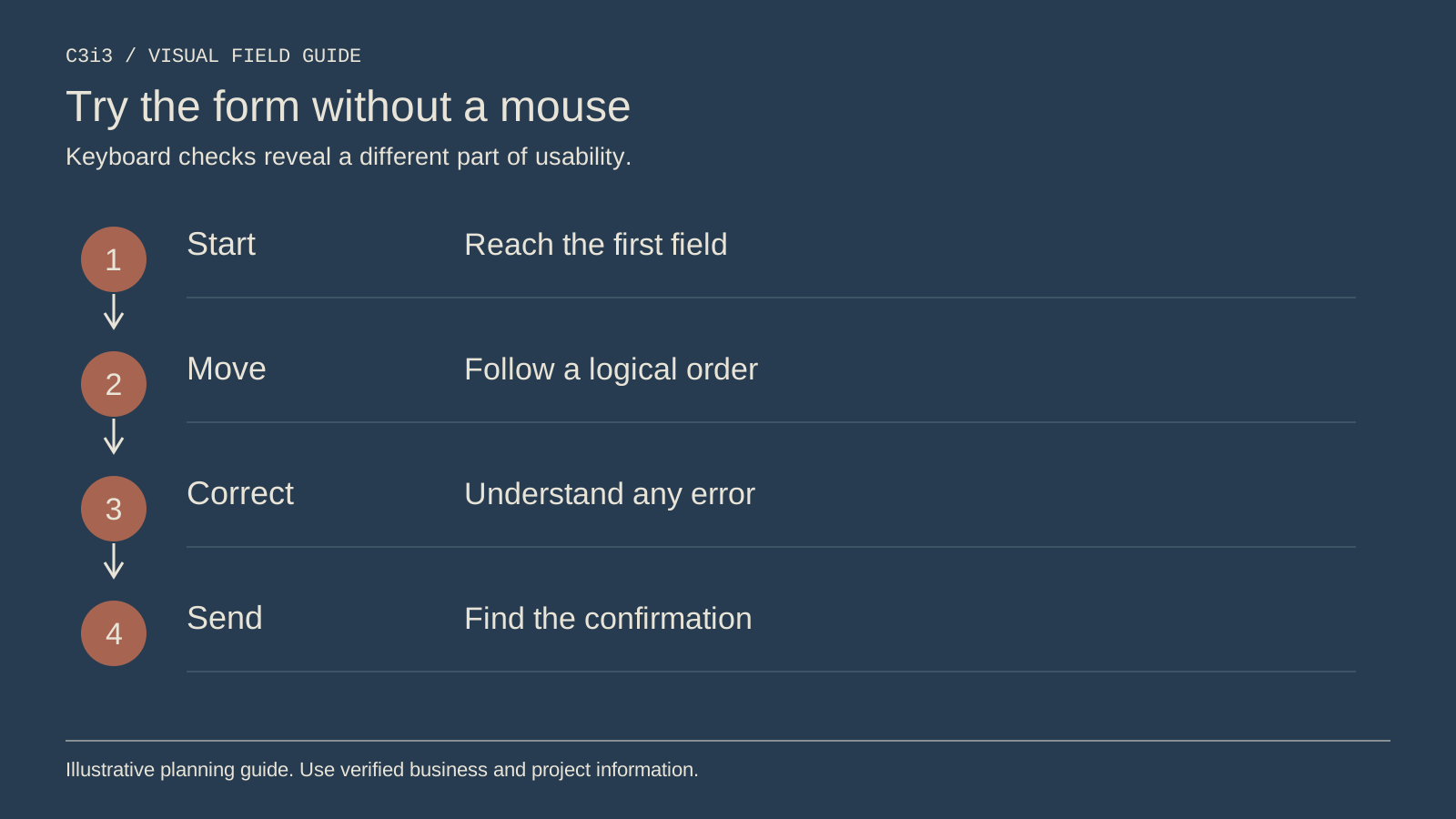
Move through the entire form without a mouse. Check that controls can be reached and operated, focus is visible, and the order makes sense. Include any custom dropdown, upload control, consent step or protection mechanism that affects submission.
Do not remove a focus indicator merely because it looks different from the design mockup. A visible indication helps people know where they are. Confirm that overlays and sticky interface elements do not trap focus or hide the action.
Keep a record of the devices and browsers tested. A single successful run is useful evidence about that task and environment, not proof that every user and assistive technology has been covered.
How should validation help someone recover?
Explain the specific problem and how to fix it. Keep entered information where appropriate instead of clearing the form after an error. Associate messages with the relevant fields and make the error state understandable without depending on color alone.
Use the W3C validation tutorial to plan implementation. A message saying only “invalid” does not tell a customer whether the problem is an email format, missing location or failed submission.
Test both expected errors and delivery failures. The form should not display a success message when the request has not been accepted by the system. Clear feedback matters to accessibility and to the reliability of your lead records.
What should happen after a successful request?
Provide an understandable confirmation and explain the next step the office can actually fulfill. A received request is not an approved electrical scope or a booked installation. Keep that distinction in the message.
Make status feedback available to assistive technologies as well as visually. The W3C user-notification guidance is a useful reference. Offer an appropriate alternative contact route for someone unable to complete the form.
Run a clearly labeled internal test and confirm receipt with the responsible office role. Accessibility and operational delivery are related checks: a usable form still needs a working handoff.
How should you scope a broader accessibility review?
Identify the standard, pages, tasks, devices and testing methods included. Combine automated checks with manual review and relevant assistive-technology testing. Discuss how findings are prioritized and rechecked after repairs.
Do not equate a high scan score, plugin installation or one keyboard test with complete conformance or legal compliance. The W3C evaluation resources explain why evaluation has scope and limits.
Connect the form review to the contractor website planning process. Define who approves copy, who repairs controls and who confirms the office handoff. A practical review leaves a clearer record than an unexplained accessibility badge.
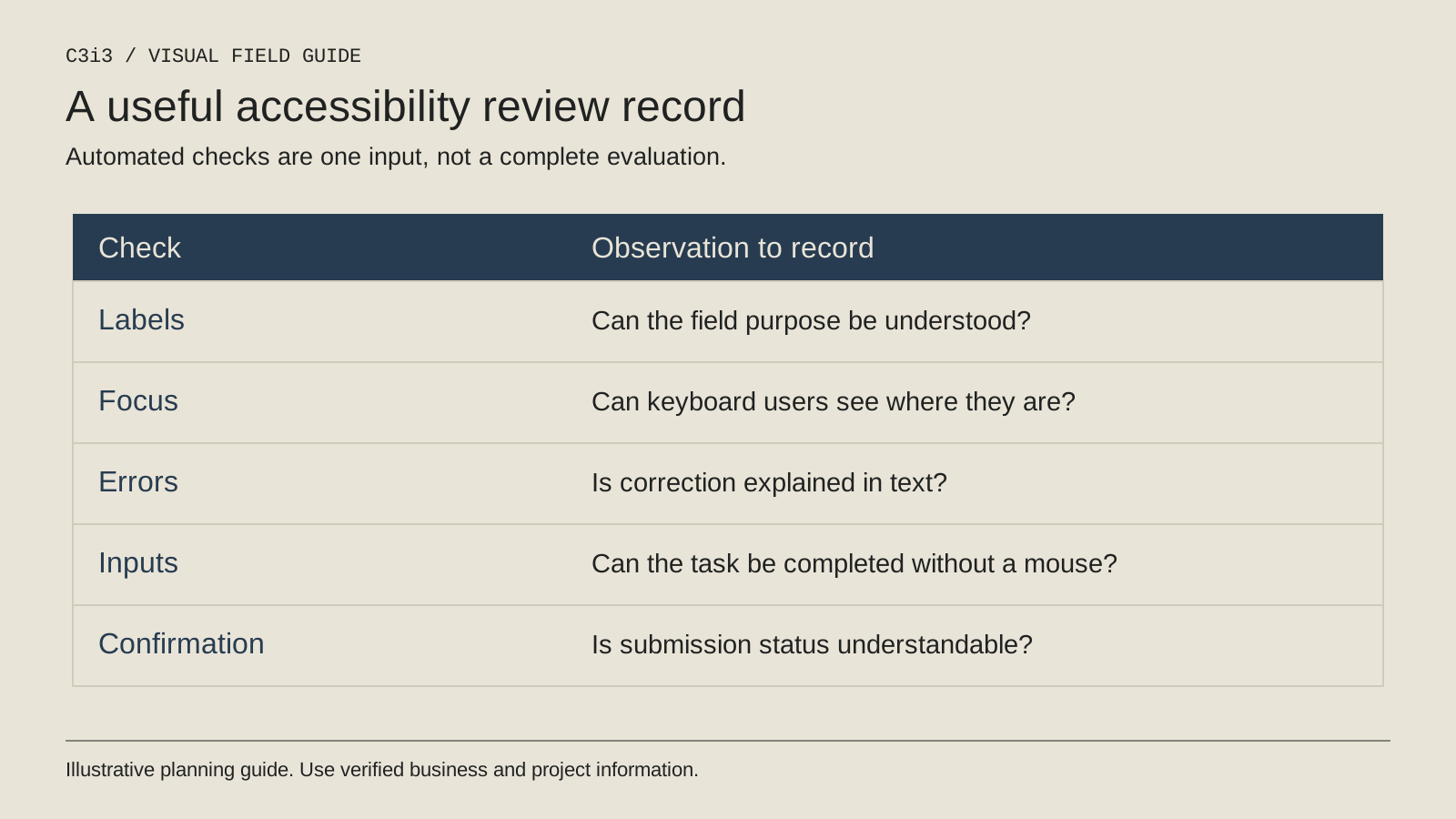
Keep this checklist beside you
Questions before the next step
Will a shorter form automatically be accessible?
No. Question count is only one issue. Labels, controls, focus, instructions, feedback and the surrounding experience also need review.
Does an automated scan prove compliance?
No. Treat it as one source of findings within a defined evaluation that includes appropriate manual testing.
How C3i3 Can Help
C3i3 can help review your electrical estimate form as a complete customer task, from understanding the first question to receiving an office response. We can clarify copy, identify interface barriers and define implementation and testing work.
Bring the form and examples of issues customers or staff have reported. We can scope a practical accessibility and usability review, document its limits and prioritize improvements. The objective is a more understandable inquiry path, with evidence about what was checked and what needs further evaluation.